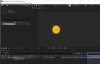
It sounds like you might be dealing with the visibility settings or the workspace configuration in Adobe After Effects. Here are a few steps you can follow to try and resolve the issue:
Show Layer Controls : Ensure that the layer controls are enabled. You can do this by toggling the "Show Layer Controls" button at the top of the composition panel (it looks like a box with a dot in the middle). This should make your motion path visible again.
Adjusting the View : Sometimes the motion path might not be visible if you are zoomed in or out too much. Adjust your view to make sure you are seeing the entire workspace properly.
Keyframes and Paths : Ensure that you have keyframes set on the position property of the layer you are working with. The motion path (arc) will only appear if there are at least two keyframes.
Select the Layer : Make sure the layer you are trying to track is selected. The motion path is only visible when the corresponding layer is selected in the timeline panel.
Preferences Reset : If none of the above solutions work, try resetting After Effects preferences. This can be done by holding down Ctrl+Alt+Shift (Windows) or Command+Option+Shift (Mac) while launching After Effects. This will reset all preferences to default, which might solve any configuration issues causing the problem.
Check View Options : Sometimes, the motion path might be hidden due to specific view settings. Go to View > View Options and make sure that "Motion Paths" is checked. snake.io
If you have tried these steps and still face issues, it might be helpful to update After Effects to the latest version or consider reaching out to Adobe support for more specific troubleshooting.